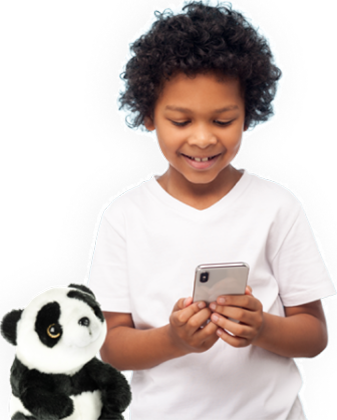
Bedwetting alarm app settings
Are you new to the bedwetting alarm? Or are you curious about the best way to set up the bedwetting alarm app or how to change the settings in the Dryly bedwetting alarm app? On this page, we will show you how to best configure the settings of the bedwetting alarm app using instructional videos.

Download the Dryly bedwetting alarm app
The bedwetting alarm app (mobile application) is available in the App Store and the Google Play Store. Click on the buttons below to download the Dryly® bedwetting alarm app. Once you have downloaded the app and ordered the bedwetting alarm, you can begin setting up and using our system.
App settings for the bedwetting alarm
- Installing the Dryly® bedwetting alarm for the first time
- Silence Dryly® app
- Remove child from the Dryly® app
- Change child's name in the Dryly® app
- Change parent's name in the Dryly® app
- Remove receiver/Wizzu from the Dryly® app
- Invite user to the Dryly® app
- Change password in the Dryly® app
- Grant permission for alarms/notifications to the Dryly® app on iOS
Initial installation of the dry-bed wet-alarm

Installing the Dryly app takes about three minutes. You will need the receiver, the transmitter, and the Dryly app, which can be downloaded for free from the Google Play Store or the App Store.
This is useful if:
- You could use an extra hand when setting up the Dryly® bedwetting alarm
Note:
- The receiver only broadcasts via the Wizzu Wi-Fi network for the first two minutes after it is turned on!
- Is the receiver showing an error code? Click here to see what it means
Step-by-step plan:
Download the app and create an account
- Download the Dryly® app
- Press "Create account"
- Enter the name of the child who will be using the Dryly® bedwetting alarm and press "Okay"
- Enter your child's date of birth and gender and press "Save"
- Read the text and indicate when you are ready
Connect the receiver to your Wi-Fi network
- Do you have the Dryly® transmitter, receiver, and your Wi-Fi details at hand? Press "Check, let's go"
- Read the steps carefully
- Turn on the receiver. Is it already on? Switch it off and back on again.
- Press "Next step"
- Press "Connect to Wizzu"
- Does your phone ask if it should connect to "WIZZU"? Press "Connect"
- Wait for your phone to properly connect to the Wizzu Wi-Fi network
- Select your home network
- Enter your home network password and press "Ok"
- Wait for everything to be set up correctly
- When the receiver has been successfully connected to the internet, it will display "Wizzu connected successfully"
Connect the transmitter to the receiver
- Do you have the Dryly® transmitter and receiver at hand? Press "Check, let's go"
- Hold the transmitter logo against the NFC square on the receiver
- The receiver will display "Transmitter successfully connected" once the connection has been made
Personalize Wizzu
- Press "Done, now dress up Wizzu"
- Let your child personalize Wizzu with their first points!
Silence Dryly mobile app

In the Dryly app, you have the option not to receive an alarm if your child has an accident. If you activate "Mute all app alarms," the alarm will no longer sound on the device you are logged into. See the settings of the Dryly mobile app below to mute the app.
This is useful if:
- One of the parents is on a night shift;
- Your child goes out with the Dryly® bedwetting alarm;
- The parents are divorced.
Note:
- Adjusting this setting has no effect on the settings of the account of, for example, your partner whom you have invited to your household in the app.
- It is not possible to turn off the alarm sound of the physical receiver via the app.
Step-by-step plan:
To mute your Dryly app, you must follow these steps:
- Open the Dryly® app
- Press the hamburger menu in the top left
- Go to Settings
- Go to "Mute all app alarms?"
Do you want to stop receiving alarms (temporarily)? Check it so it turns blue. Do you want to receive the alarm again? Uncheck it so it turns grey.
Remove child from the Dryly® app

In some cases, you may want to remove your child from the Dryly® app. You can easily remove a child with a few taps on the screen. Take a look at the settings of the mobile Dryly app below to delete a child in the Dryly® app.
This is useful if:
- Your child no longer uses the Dryly® bedwetting alarm
- An additional child was accidentally created
Note:
- Deleting a child will result in the loss of all history, and you will no longer be able to view statistics.
- Once you have deleted a child, you cannot undo this.
Step-by-step plan:
To remove a child from the Dryly app, you must follow these steps:
- Open the Dryly® app
- Press the hamburger menu in the top left
- Go to Settings
- Go to the 'Children' heading
- Press on the child you want to remove
- Press 'remove'
- The child will disappear from the list and be deleted
Change your child's name in the Dryly® app

It may happen that you accidentally entered your child's name incorrectly during registration. This can be easily adjusted in the app. Take a look at the settings of the mobile Dryly app below to change a child's name.
This is useful if:
- The child's name contained a typo
- You accidentally entered the parent's name
Note:
Would you like to change the name of your own (parent) account?
Step-by-step plan:
- Open the Dryly® app
- Press the hamburger menu in the top left
- Go to "My children"
- Select the child whose name you want to change
- Press "Change name"
- Enter the correct name
- Press "OK"
- You have successfully changed the child's name
Change the parents' names in the Dryly® app
It may happen that you accidentally entered your name incorrectly during registration. Take a look at the mobile Dryly app settings below to change a parent's name in the Dryly® app.
This is useful if:
- You made a typo in your name
- You accidentally entered your child's name
Note:
- Would you like to change a child's name?
Step-by-step plan:
- Open the mobile Dryly app
- Press the hamburger menu in the top left
- Go to "My Account"
- Select the first or last name you want to change
- Enter the correct first or last name
- Press "Save". (Minimize your keyboard if necessary to see the "Save" button.)
- Your first or last name has been changed.
Remove the receiver/Wizzu in the Dryly® app
Sometimes you may want to remove the receiver from the Dryly mobile app. See the settings of the Dryly mobile app below to remove the receiver in the Dryly® app.
This is useful if:
- You want to install the receiver on a new Wi-Fi network.
- You want to connect a new receiver to your child.
Note:
- If you remove the receiver, you will not receive a notification on your smartphone if your child has an accident. The receiver will continue to sound an alarm if your child has an accident and the receiver is switched on.
Step-by-step instructions:
- Open the Dryly® app
- Press the hamburger menu in the top left
- Go to "My children"
- Select the child whose name you want to change
- Press "Change name"
- Enter the correct name
- Press "OK"
- You have successfully changed the child's name
Invite the user to the Dryly® app
It is possible to grant another parent, guardian, or babysitter (temporary) access to the Dryly mobile app. The new user will have insight into the dashboard and will receive the alarm via the Dryly mobile app when an accident occurs. View the settings of the Dryly mobile app below to invite a user to the Dryly® app.
This is useful if:
- Your child is sleeping somewhere else for the night
- A babysitter will be looking after your child for an evening
- There is a separated parent situation
Note:
- The invited user will have full insight into the child's dashboard.
- Children from another family already in the account of the user who accepts the invitation will be deleted!
- You can revoke access in the "Settings" by sliding the slider behind the name to gray.
How to proceed:
This process takes place in two steps. Invite the new user via your logged-in account. The user must accept the invitation.
Step-by-step plan:
Send invitation
- Open the Dryly mobile app
- Press the hamburger menu in the top left
- Go to "Manage access" and click on "Invite parent"
- Read the warning carefully and then press "OK"
- Enter the name and email address
- Do you want to make the user an administrator?
- Press "Send invitation"
Accept invitation
- Download the Dryly mobile app if you haven't already
- Create an account
- On the phone with the Dryly mobile app, go to the invitation you received via email and click the link
- Press "Accept invitation"
- Your phone will ask if you want to open the Dryly mobile app. Click "Open."
- Read the warning carefully before clicking "OK." You can only have one family in the app. If you already have another child saved in this account, all that information will be lost.
- Press "Accept"
- To verify this, you can go to "View Wizzu." If everything went well, the child for whom you accepted the invitation will be listed here!
Invite the user to the Dryly® app
It is possible to grant another parent, guardian, or babysitter (temporary) access to the Dryly mobile app. The new user will have insight into the dashboard and will receive the alarm via the Dryly mobile app if an accident occurs. See the Dryly mobile app settings below to invite a user to the Dryly® app.
This is useful if:
- Your child is sleeping somewhere else for the night
- A babysitter will be looking after your child for the evening
- There is a separated parent situation
Note:
- The invited user has full insight into the child's dashboard.
- Children from another family already on the account of the user accepting the invitation will be deleted!
- You can deny access in the "Settings" by moving the slider behind the name to gray.
How to proceed:
This process takes two steps. Invite the new user via your logged-in account. The user must accept the invitation.
Step-by-step plan:
Send invitation
- Open the Dryly mobile app
- Press the hamburger menu in the top left
- Go to "Manage access" and click on "Invite parent"
- Read the warning carefully and then press "OK"
- Enter the name and email address
- Do you want to make the user an administrator?
- Press "Send invitation"
Accept invitation
- Download the Dryly mobile app if you haven't already
- Create an account
- On the phone with the Dryly mobile app, go to the invitation you received via email and click on the link
- Press "Accept invitation"
- Your phone will ask if you can open the Dryly mobile app. Click "Open".
- Read the warning carefully before clicking "OK". You can only have one family in the app. If you already have another child saved in this account, all that information will be lost.
- Press "Accept"
- To verify, you can go to "View Wizzu". If everything went well, the child for whom you accepted the invitation will be listed here!
Change password in the Dryly® app
In the app, we have made it possible to change the password of your Dryly® app account. See the Dryly mobile app settings below to change the password in the Dryly® app.
This is useful if:
- You want to update your passwords
Note:
- Did you create an account using the Facebook feature? Then it is not possible to change your password.
- You cannot change the password of your Dryly® webshop account in the Dryly mobile app. Change the webshop account password.
Step-by-step plan:
- Open the Dryly mobile app
- Press the hamburger menu in the top left
- Go to "My Account"
- Press "Change password"
- Enter the new password
- Press "OK"
- You have successfully changed your password
Grant the Dryly® app permission for alarms/notifications in iOS.
The Dryly® app is particularly useful because you receive a message on your phone as soon as an accident has occurred. It can sometimes happen that you have accidentally set the Dryly® app so that no push notifications are sent. Here we show you how you can restore this.
This is useful if:
- The receiver turns off and is connected to the internet, but you do not receive a message on your phone.
Note:
- Check in the settings to ensure you haven't simply set the alarm to "silent"
Step-by-step instructions:
- Go to Settings
- Press "Notifications"
- Find the Dryly® app in the list
- Select "Allow notifications"
Further questions?
If other settings in the Dryly bedwetting alarm app are not entirely clear, please contact us. You can also contact us if there are any uncertainties regarding the above-mentioned settings of the Dryly mobile app.